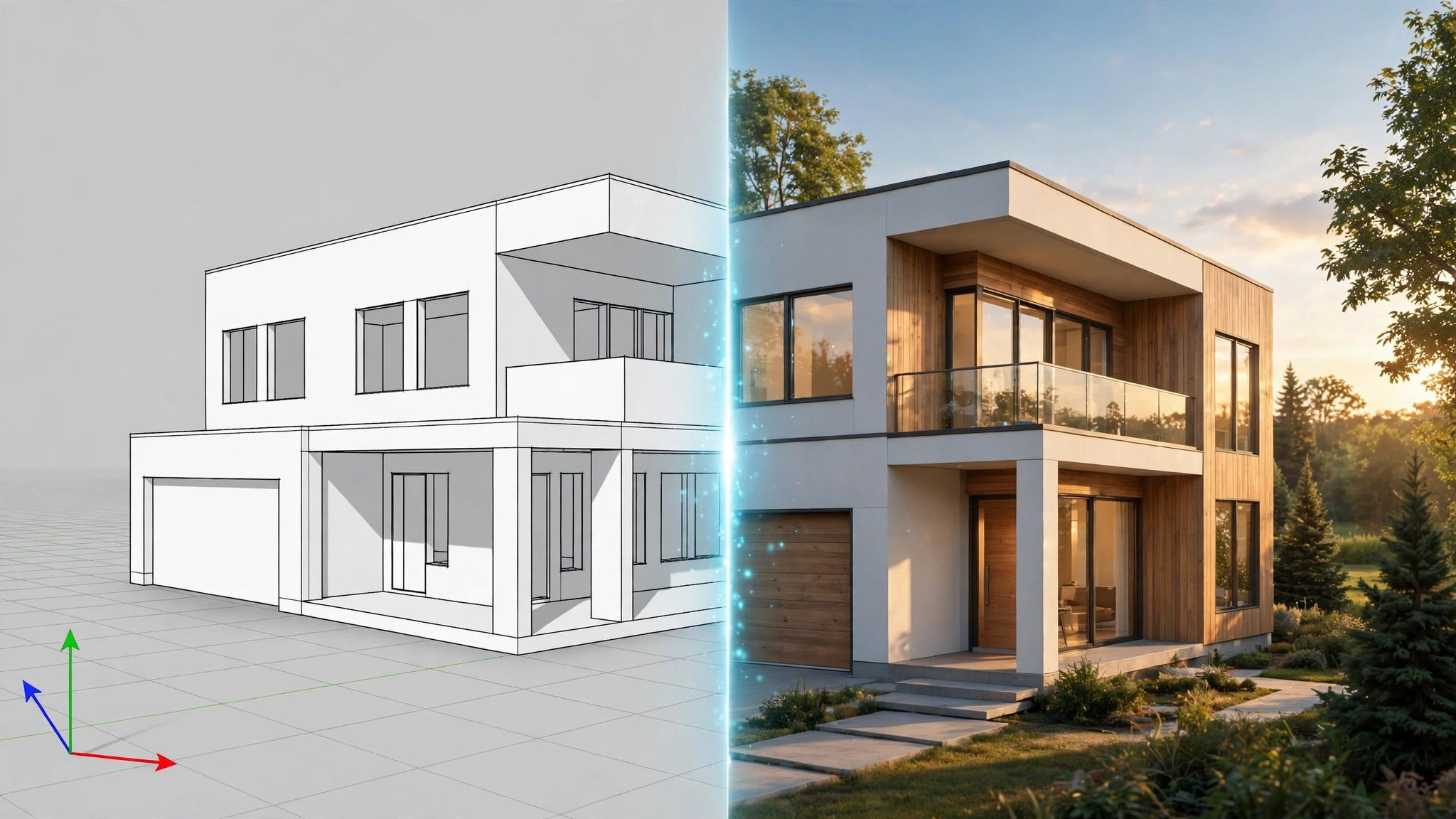
Last updated: November 2, 2026 — all prices checked on the vendors’ official pages.
If you model in SketchUp, you have already felt the pressure: clients now expect near-photographic visuals at the speed of a screenshot. A Chaos and Architizer survey of 1,227 architecture professionals found that 46% already use AI tools in their workand most of the rest are experimenting.
But most “best AI renderer” lists skip the three things that decide whether a tool survives real client work: how fast its credits run out, how much it redraws your design, and whether it can repeat the same style twice. Those are exactly the things users complain about in the SketchUp community forums — so this guide compares the tools on those points, not just on their marketing.
Below are the six AI rendering options SketchUp users actually choose between in 2026, compared on price, credits, workflow and honest limits.
Quick picks: the 6 tools at a glance
| Tool | Best for | Starting price | Free option |
|---|---|---|---|
| SketchUp AI Render | Quick concepts without leaving SketchUp | Included with Go / Pro / Studio | Included monthly credits |
| Veras (Chaos) | Controlled AI rendering inside your CAD apps | $16.90/mo, billed annually | 14-day trial |
| D5 Render | Final client visuals with zero geometry drift | $38/mo or $360/yr | Free Community (non-commercial) |
| LookX AI | Your own house style + unlimited images | $20/mo | Free Basic plan |
| MyArchitectAI | The simplest, fastest screenshot-to-render workflow | $29/mo | 10 free renders |
| Enscape (with Veras AI) | Studios that already own Enscape | $47.90/mo, billed annually | Trial available |
Read this first: 3 limits every AI renderer has
1. Geometry drift
Diffusion-based tools (AI Render, Veras, LookX, MyArchitectAI) do not render your model — they redraw it as a picture. Walls and proportions usually survive, but thin elements go first: window mullions, stair balustrades, door handles and roof edges. Never send a diffusion render to a contractor as a dimensioned drawing.
2. Consistency across views
This is the number-one frustration in the SketchUp forums. A designer generates options for a row of townhouses, and every unit comes out with a different brick, roof and window treatment. For a coherent set, use a reference image, a trained style (LookX), or a real renderer (D5, Enscape).
3. Credits burn faster than you think
Almost nobody keeps the first generation. Budget 3–5 generations per usable image on any credit-based plan. That is why the “cost per render” table further down matters more than the headline price.
1. SketchUp AI Render — best if you want it built in
How it works with SketchUp: AI Render (the feature previously called SketchUp Diffusion) lives inside SketchUp for Desktop, Web and iPad. It renders your current viewport, not a file you export.
Price: Included with every paid SketchUp plan, paid for in AI credits. Per Trimble’s official AI Credits documentation, each AI Render generation costs 10 credits. Monthly allowances are 100 credits on Go (10 renders), 150 on Pro (15 renders) and 200 on Studio (20 renders). A credit add-on costs $11.99 for 1,500 credits — enough for about 150 generations.
Genuinely good at: Speed of access. No plugin, no export, no second subscription to evaluate options in a client meeting.
Honest limits: Fifteen renders a month on Pro disappears in a single afternoon of iteration. Users consistently report that results are hit and miss — one generation looks great, the next adds a phantom wall or swaps a material.
Best for: SketchUp subscribers who want instant concept options and will do final visuals elsewhere.
2. Veras by Chaos — best for control inside your design apps
How it works with SketchUp: Veras is a plugin from Chaos (the company behind V-Ray and Enscape, which acquired Veras in early 2025). It runs inside SketchUp, Revit and Rhino — plus Archicad, Vectorworks, Forma and Allplan and a web app — and its best trick is control: you set a reference image and sliders for Geometry Override (how far the output may depart from your model), Material Override, and Prompt Strength. Recent versions also generate AI video and can turn generated content back into 3D assets in your scene.
Price: From Chaos’s official pricing: Starter is $16.90/month billed annually ($202.80/year) with 500 credits/month (roughly 50 standard 1K images); Pro is $29/month billed annually ($348/year) with 2,000 credits/month (roughly 200 1K images); and a higher Ultra tier offers 6,000 credits/month, whose price Chaos does not list on the plan card.
Genuinely good at: Iteration with intent. The override sliders let you creep from “faithful to my model” to “loose inspiration”, which is genuinely different from a text-box renderer.
Honest limits: It is still diffusion: drift and material swaps happen, just with more say in the matter. Credits are consumed per generation, and higher resolutions cost more credits.
Best for: Firms working across SketchUp and other BIM/CAD tools that want one AI renderer everywhere.
3. D5 Render — best for final client visuals
How it works with SketchUp: D5 is a real-time ray-tracing renderer. You sync your SketchUp model into D5 (or use the D5 Lite plugin), and D5 renders it live. Because the geometry is real, your geometry cannot drift.
Price: Community edition is free but licensed for non-commercial use only. D5 Pro is $38/month billed monthly or $360/year (about $30/month), including commercial rights and AI tools. Teams is $75/seat/month or $708/seat/year.
Genuinely good at: Deliverables. Because the scene is real, every camera angle matches, walkthroughs and panoramas come from the same model, and the asset library (16,000+ models and materials) is built for architecture. Its AI features — atmosphere matching, AI texture generation, style transfer, inpainting and AI-generated entourage — speed up the work without replacing the model.
Honest limits: Windows only, and it needs a real GPU — a discrete card is required (GTX 1060 6GB minimum; an RTX card is recommended for smooth use). It is a renderer with AI features, not an instant screenshot-to-image tool, so setup takes longer than Veras or LookX.
Best for: Freelancers and studios producing client presentations, animations and VR tours from SketchUp models.
4. LookX AI — best for a signature style and unlimited images
How it works with SketchUp: LookX works from sketches, text, reference images or a model screenshot, with plugins for SketchUp and Rhino, and its signature feature is training: you can train a custom model on your own firm’s past projects, so generated concepts come out in your house style instead of a generic AI look. It also generates video, and offers an API for teams.
Price: A free Basic plan includes 100 X-points to try it. The paid plan is $20/month (or $199/year) with unlimited image generation plus 580 X-points a month, which are spent on extras like model training and upscaling.
Genuinely good at: Volume and identity. Unlimited generations remove the credit anxiety entirely, and the custom training directly attacks the consistency problem — at least for style and mood, even if exact geometry still needs checking.
Honest limits: Still diffusion underneath, so drift checks apply. Generation speed and output resolution depend on the lane/plan, and the ecosystem is younger and smaller than Chaos’s.
Best for: Design studios that produce a lot of concept imagery and want it to look like their work.
5. MyArchitectAI — best for the simplest workflow
How it works with SketchUp: No plugin at all. Export a screenshot or view from SketchUp (or upload a sketch or CAD image), choose a style, and get a photorealistic render back in your browser — the vendor claims around 10 seconds per render. Everything runs in the cloud, so any computer works.
Price: 10 renders free. Starter is $29/month with unlimited renders and edits, 4K downloads and a commercial licence; Studio is $49/month (adds animations and 8K); Team is $99/month for five seats. Annual billing works out to roughly two months free.
Genuinely good at: Zero setup and flat pricing. For a busy small practice, “upload, render, send” with no credit counting is a real operational advantage, and reviewers consistently praise its balance of speed and realism for exteriors and interiors.
Honest limits: Image-based only — it works from exported views, not your live model, and it does not accept floor plans as input. Being diffusion, fine geometry and specified materials still need a human check before anything reaches a client.
Best for: Small firms and solo designers who want client-ready concept images with the least possible friction.
6. Enscape — best if you already own it
How it works with SketchUp: Enscape is Chaos’s real-time renderer that plugs directly into SketchUp — and current Chaos pricing bundles Veras AI into Enscape Solo, with a monthly allowance of Chaos AI credits. Many SketchUp users searching for an “AI renderer” already have AI rendering sitting inside a licence they own.
Price: Enscape Solo is $47.90/month billed annually ($574.80/year), including Veras AI and 100 Chaos AI credits a month; higher tiers add more credits.
Genuinely good at: The hybrid workflow: a true real-time scene for accuracy and walkthroughs, with AI generation one panel away for ideation.
Honest limits: The included AI credit allowance is small — heavy AI users will end up buying Veras tiers or credit packs on top. And like D5, it needs a capable GPU.
Best for: Existing Enscape users — check your licence before buying anything else on this list.
What one month of renders really costs
Headline prices mislead because the billing units differ. Here is the same money translated into pictures, using each vendor’s own published credit equivalences:
| Plan | Monthly cost | What it buys | Approx. cost per image |
|---|---|---|---|
| SketchUp AI add-on (on Pro) | $11.99 | 1,500 credits ≈ 150 AI Renders | ≈ $0.08 |
| Veras Pro | $29 (annual billing) | 2,000 credits ≈ 200 1K images | ≈ $0.15 |
| Veras Starter | $16.90 (annual billing) | 500 credits ≈ 50 1K images | ≈ $0.34 |
| LookX | $20 | Unlimited images | $0 marginal |
| MyArchitectAI Starter | $29 | Unlimited renders | $0 marginal |
| D5 Pro | $30–38 | Unlimited local rendering | $0 marginal (your GPU) |
Remember to divide by your keeper rate: if one in four generations is usable, multiply the per-image figures by four. On Veras Starter that is roughly $1.36 per client-safe image — still cheap, but no longer “free-feeling”, and it is why heavy users drift toward the unlimited plans.
So, which one should you choose?
- You already pay for SketchUp and just need fast options in meetings: start with AI Render — it is already in your subscription. Buy the $11.99 credit add-on in a heavy month instead of a new tool.
- You live inside SketchUp/Revit/Rhino all day and want control: Veras. The geometry and material overrides are the difference between a toy and a tool.
- Your renders go to clients as final visuals: D5 Render. It is the only approach here where the approved image is guaranteed to match the model.
- You generate concepts daily and hate credit meters: LookX ($20, unlimited, trainable style) or MyArchitectAI ($29, unlimited, simplest workflow).
- You already own Enscape: use the bundled Veras AI first; upgrade only if the credit allowance pinches.
FAQ
Does SketchUp have built-in AI rendering?
Yes. AI Render (formerly SketchUp Diffusion) is built into SketchUp for Desktop, Web and iPad for Go, Pro and Studio subscribers, paid for in AI credits.
Is SketchUp AI Render free?
It is included with paid SketchUp subscriptions but capped by credits: about 10 renders a month on Go, 15 on Pro and 20 on Studio, with a $11.99 add-on for 1,500 extra credits.
Why does the AI change my design?
Because most AI renderers redraw your screenshot with an image model instead of rendering your 3D geometry. Thin details and materials are the first things to change — check every output against your model before it goes to a client.
Can AI renders be used as final client presentations?
Diffusion outputs are best treated as concept visuals. For finals, either curate and correct them carefully, or use a real-time renderer such as D5 or Enscape, where the image is guaranteed to match the model.
How this guide was compiled
Prices, credit allowances and plan features were checked on the vendors’ official pages (Chaos, D5 Render, Trimble/SketchUp help documentation, LookX and MyArchitectAI) on November 2, 2026. Limitations and complaints are drawn from published hands-on tests and the SketchUp community forums. Vendors change pricing and credit systems frequently — every figure here carries a “Last updated” date at the top, and we revise this guide when plans change. No vendor paid for placement in this list.
Sources: SketchUp AI Credits documentation; Veras pricing; D5 pricing guide.